Best of 3 picks
Best AI meeting note takers for small businesses
Check your meeting app's built-in notes first. If you need a separate tool and it's just you, try Fathom. Compare Fireflies and Otter on free limits.
Try it: Set up an AI note taker the right way
Get a calendar invite line, 3 ways to ask on the call, a 5-box settings checklist, a 5-minute test and a notes template.
Copy and paste
FILL THIS IN (then copy everything into your AI chat)
My call app (the app you meet in, like Zoom, Google Meet or Teams): Zoom
Who's on my calls (who you meet with, like clients, co-workers or family): clients
My note taker (optional, the tool's name if you already picked one, like Fathom or Otter):
--- Don't change anything below this line ---
You are helping me start using an AI note taker on my calls in "My call app" with "Who's on my calls", the right way: everyone agrees to it, nothing gets shared by surprise, and the notes are actually useful. If "My note taker" is blank, keep it general and don't ask me.
Give me:
1) Before the call: exactly one sentence (under 25 words) I can paste into my calendar invites saying an AI note taker will join and that anyone can ask me to turn it off.
2) At the start of the call: 3 short, friendly ways to ask everyone if it's OK to record and summarize, plus a separate 4th line for when someone says no. Don't promise anything the tool might not do.
3) A settings checklist for before my first real call: exactly these 5 boxes I can tick, nothing added: who can open recordings and share links; whether summaries are sent to attendees automatically; whether others get a recording notice; whether my calls are used to train the company's AI; how long recordings are kept and how to delete one. Tell me what to look for, not where the buttons are, since you can't see my account. If "My note taker" is filled in, add only what you're sure that tool lets me change, and write "check in your settings" for anything you're not sure of.
4) A 5-minute test before a real call: record a short practice call with just myself, then check what was saved and who it was sent to.
5) A short notes template I can ask the note taker for after each call, with just 3 headings: decisions, who does what by when, and open questions.
Start your reply with part 1 and end it with the template in part 5: no intro line, no extra sections, no closing line.
Don't tell me what any law says for my state. Just tell me to ask everyone first. Don't connect to or sign in to anything.
Example result
We filled in: My call app: Zoom. Who's on my calls: clients. My note taker: left blank.
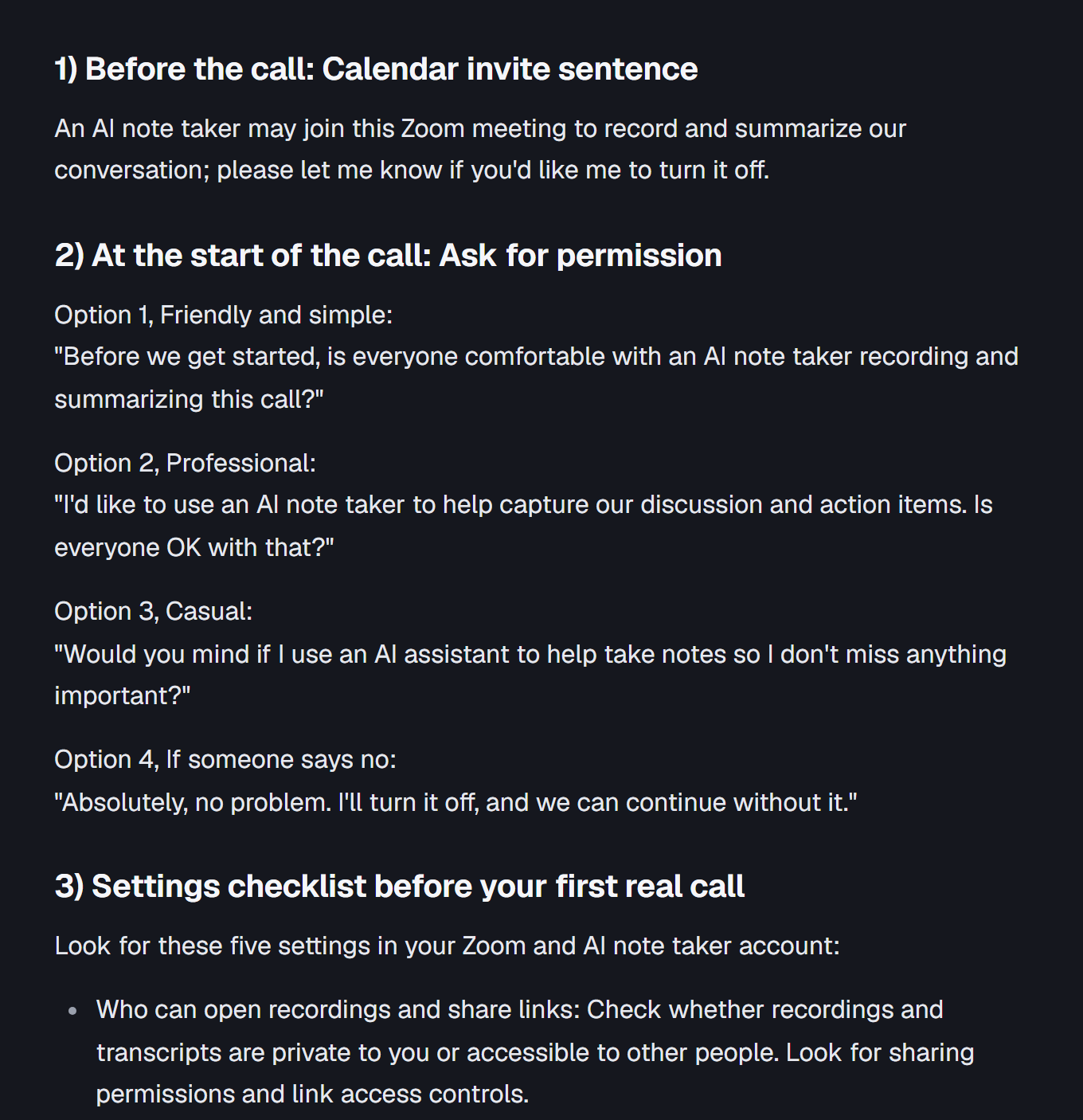
1) Before the call: Calendar invite sentence
An AI note taker may join this Zoom meeting to record and summarize our conversation; please let me know if you'd like me to turn it off.
2) At the start of the call: Ask for permission
Option 1, Friendly and simple:\
"Before we get started, is everyone comfortable with an AI note taker recording and summarizing this call?"
Option 2, Professional:\
"I'd like to use an AI note taker to help capture our discussion and action items. Is everyone OK with that?"
Option 3, Casual:\
"Would you mind if I use an AI assistant to help take notes so I don't miss anything important?"
Option 4, If someone says no:\
"Absolutely, no problem. I'll turn it off, and we can continue without it."
3) Settings checklist before your first real call
Look for these five settings in your Zoom and AI note taker account:
- Who can open recordings and share links: Check whether recordings and transcripts are private to you or accessible to other people. Look for sharing permissions and link access controls.
- Automatic summaries: Check whether summaries are automatically emailed or shared with meeting attendees.
- Recording notices: Check whether attendees receive a notification when recording or transcription starts.
- AI training: Check whether your calls, recordings, or transcripts can be used to train the company's AI models. Look for opt-out or data-use settings.
- Retention and deletion: Check how long recordings are stored, whether you can permanently delete them, and whether deleting a recording also deletes its transcript and summary.
4) Five-minute test before a real call
Before inviting a client to use an AI note taker:
- Open Zoom and start a practice meeting by yourself.
- Invite no one else.
- Start your AI note taker and make a few practice statements.
- Talk through a sample decision, an action item, and an unanswered question.
- End the meeting and wait for processing to finish.
- Check what was saved:
- Was an audio or video recording created?
- Was a transcript created?
- Was a summary generated?
- Were action items captured correctly?
- Check who received the recording, transcript, or summary.
- Confirm that you can delete the practice recording and associated notes.
Goal: Make sure nothing is unexpectedly shared and you understand exactly what the tool saves.
5) Short notes template for after each call
Ask your AI note taker:
Please summarize this client call using only these three headings. Keep the notes concise, specific, and focused on agreed details.
Decisions
- What was agreed upon?
- What choices were made?
Who does what by when
- Person responsible:
- Action item:
- Deadline:
Open questions
- What still needs clarification?
- What information are we waiting for?
- What needs to be discussed next?
Add a clear unknown-deadline ruleMake action items easier to scan
Quick answer: first, check whether the meeting app you already pay for takes notes. If you need a separate tool and it's just you, try Fathom first, because its published free plan is generous. Fireflies and Otter are worth comparing, but both are on Pocket Friday's Watch list. We have not tested any of these tools hands-on.
The best one records your real meetings, gives you notes you can use and lets you control who sees them. A long feature list won't tell you whether it can get your customers' names right or tell an idea from a promise.
Start with the tool you already pay for
If you live in Zoom, check your account before adding another subscription. Zoom's AI assistant is now called ZoomMate. ZoomMate Basic lists summaries for 3 hosted meetings per month and 3 My Notes uses per month. Its free meetings have a 40-minute limit. Each of those is its own small limit, so free Zoom won't give you unlimited notes.
Google Meet's Take notes for me needs an eligible Workspace edition or Google AI plan. It saves notes to Google Docs, and your account and admin settings decide whether you can use it. Look for it in a meeting you set up, rather than assuming every Google account has it.
If what you have already works, keep it simple and stop there. If not, choose a separate note taker for the gap you actually have: longer calls, more than one meeting app, or an easier way to find decisions later.
Compare the limits that change your decision
These are the limits each company publishes, not results from our own tests. The order is our editorial call, not a measured ranking. Prices are the standard US dollar list prices. We re-read the Fathom, Fireflies and Otter pricing pages on November 2, 2026, and the prices and free limits shown here still match. The Zoom, Google, Fireflies credit and Otter help pages were read on October 28, 2026. A "billed annually" price is the monthly cost when you pay for a year up front, so check the full total and renewal terms before you buy.
Scroll to see every column
| Tool | Free allowance to know | Paid option to compare | Main decision |
|---|---|---|---|
| Fathom | Unlimited recordings and transcripts; first 5 calls a month get advanced summaries | Premium: $16/user/month billed annually, or $20 monthly | Do basic summaries cover your routine calls? |
| Fireflies | 400 minutes of storage per team; limited AI summaries; transcription conditions below | Pro: $10/seat/month billed annually, or $18 monthly | Are the storage, export and auto-join rules acceptable? |
| Otter | 300 transcription minutes/month; 30 minutes per conversation; 3 lifetime file imports | Pro: $8.33/user/month billed annually, or $16.99 monthly | Will the free conversation limit cut off the notes you need? |
Fathom: a sensible first individual trial
Fathom's free plan records and transcribes your calls, so it's worth a look if you're tired of typing through routine calls. Its help page says your first 5 calls each month get advanced summaries, and after that you get the General/Enhanced template. Before you judge your trial, check which features stay once the paid preview ends.
Paying for yourself and paying for a team solve different problems. Fathom Team is listed at $15/user/month billed annually, or $19 monthly, with a 2-user minimum. Don't buy team seats just to get better notes for yourself. Buy them when your team actually needs to share and work on notes together.
Our take: start with a call that has nothing sensitive in it and that everyone agreed to record. Compare its decisions and to-dos with your own notes. Fathom has Pocket Friday's Pass status. That is not a privacy guarantee or a test score.
Fireflies: read the asterisk before connecting a calendar
Fireflies' pricing page lists unlimited free transcription, with an asterisk, and limited AI summaries. Its help page explains the asterisk: if you sign up on the web on or after September 1, 2026, you get 3 transcription credits. Turning on Auto-join calendar meetings unlocks unlimited transcription, but summaries still use credits. Older accounts and other ways of signing up can get different allowances.
That setting matters. Decide which meetings it's OK to record before you connect your calendar. Don't let it join everything just to unlock free transcription. Go through the joining and sharing settings with your team first.
Storage has its own limit. The pricing page gives the free plan 400 minutes per team, and transcript downloads are a Pro feature. If you want to keep your notes somewhere else, check the export format and who is allowed to export before you rely on it.
Our status: Watch. It's here so you can compare, not because we recommend it.
Otter: the length of one call can decide it
Otter's free Basic plan includes live transcription. Its help page gives it 300 minutes per month, 30 minutes per conversation, and 3 audio/video imports for the lifetime of the account. Having minutes left in the month doesn't lift the 30-minute cap on each conversation.
If your usual customer calls run longer than that, the free plan may not work for you, even if you only have a few calls. Otter Pro lists 90 minutes per meeting and 1,200 in-app recording minutes. Check the limit for the way you plan to record, because uploaded files have their own limits.
Our status: Watch. It's here so you can compare, not because we recommend it. Our price table leaves out a regional deal shown on Otter's pricing page.
Set the rules before the first recording
Start with a short heads-up: "I'd like to record and use AI to draft notes. I'll review them and share them with [people]. Is everyone comfortable with that?" Say where the recording will be saved. If anyone says no, turn recording off and take notes by hand.
Before you use a note taker on calls with customers or staff:
- Decide which meetings should never be recorded. Keep automatic joining off until you know exactly which meetings it will join.
- Check who gets recordings, transcripts and summaries by default. Try a limited share first, before you send a real customer's notes.
- Decide who can delete, export or keep records when someone leaves the team.
- Before anything confidential goes in, read the company's current data-use settings and any rules your business must follow.
These are good habits, not legal advice. They don't make recording legal everywhere your callers are, and they don't make a tool right for regulated information. We did not audit security controls or recheck legal cases for this comparison.
Run a useful trial, then decide
Pick a routine meeting where everyone is happy to be recorded and no sensitive customer details come up. Jot down your own short notes too. Afterward, check whether the AI got the names, decisions, deadlines and who is doing what right. Mark anything it made up or got wrong.
Then find one decision in the transcript, fix the summary, export what you need and check who can see it. Note how much cleanup that took. A tool only earns its place if all that is easier than what you do now.
Read the final notes yourself before you share them. Send a short action list with an owner, next step and due date for each item, and ask people to correct anything wrong. Treat the AI summary as a draft, not the official record of the meeting.
Our picks
Scroll to see every column
| Pick | Best for | Starting price | Official site |
|---|---|---|---|
| 01 Fathom | First trial for an individual Unlimited free recordings and transcripts; advanced summaries are limited to the first 5 calls each month. | Free forever Free plan Checked Nov 3, 2026 | |
| 02 Fireflies | Compare storage and capture settings Free storage is 400 minutes per team. Unlimited free transcription has an auto-join condition for newer accounts. | $0 Free plan Checked Nov 2, 2026 | Watch out
Visit Fireflies (opens the official site in a new tab) A privacy lawsuit over voice data is pending, with no ruling found as of Oct 30: Fricker v. Fireflies.AI (1:26-cv-02675). Source: pacermonitor.com, Oct 30, 2026. |
| 03 Otter | Compare live notes for short calls Basic includes 300 transcription minutes a month, with a 30-minute limit per conversation. | Free Basic plan Checked Nov 2, 2026 | Watch out
Visit Otter (opens the official site in a new tab) A privacy class action is in discovery: In re Otter.AI Privacy Litigation, 5:25-cv-06911. On Aug 13, 2026 the court let the Wiretap Act, California privacy and Illinois voice data claims go forward. Source: cases.justia.com, Oct 30, 2026. |
Questions
Which should I try first?
First check what note features your current meeting app includes. If you need a separate tool, try Fathom on a routine call where everyone agrees to be recorded. Compare the result with your own notes before you pay.
Does unlimited mean every feature is unlimited?
No. Recording, transcript storage, summaries, AI features and uploads can each have their own limit. Fathom limits free advanced summaries, Fireflies has storage and credit rules, and Otter Basic has monthly and per-conversation limits.
Can I record without asking?
Our rule of thumb: tell everyone what will be recorded and where the notes will go, and ask before you start. If anyone says no, take notes by hand. Follow the rules that apply to your business and the people on the call. This page can't tell you what is legal for your call.
Why are Fireflies and Otter on this list?
They are on Pocket Friday's Watch list for now. We include what they offer so you can compare, not because we recommend them.
Sources and editorial notes
We read each company's official pricing and help pages on October 28, 2026, and re-read the Fathom, Fireflies and Otter pricing pages on November 2, 2026. This compares what each plan says you get. We have not tested how well these tools record, how accurate they are, how they connect to other apps or how their account controls work, so the order is not a measured ranking. It is not a legal or security audit. How we review.
How this page was researched
We used the official pricing and help pages listed below. We have not run calls, measured accuracy or tested account controls. The order is our editorial call, not a measured ranking. This is not a legal or security audit.